Navigation
Opening Bible References
To open a bible reference, simply click on the book name at the top of the screen:
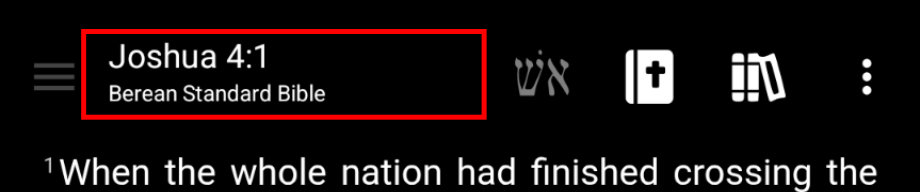
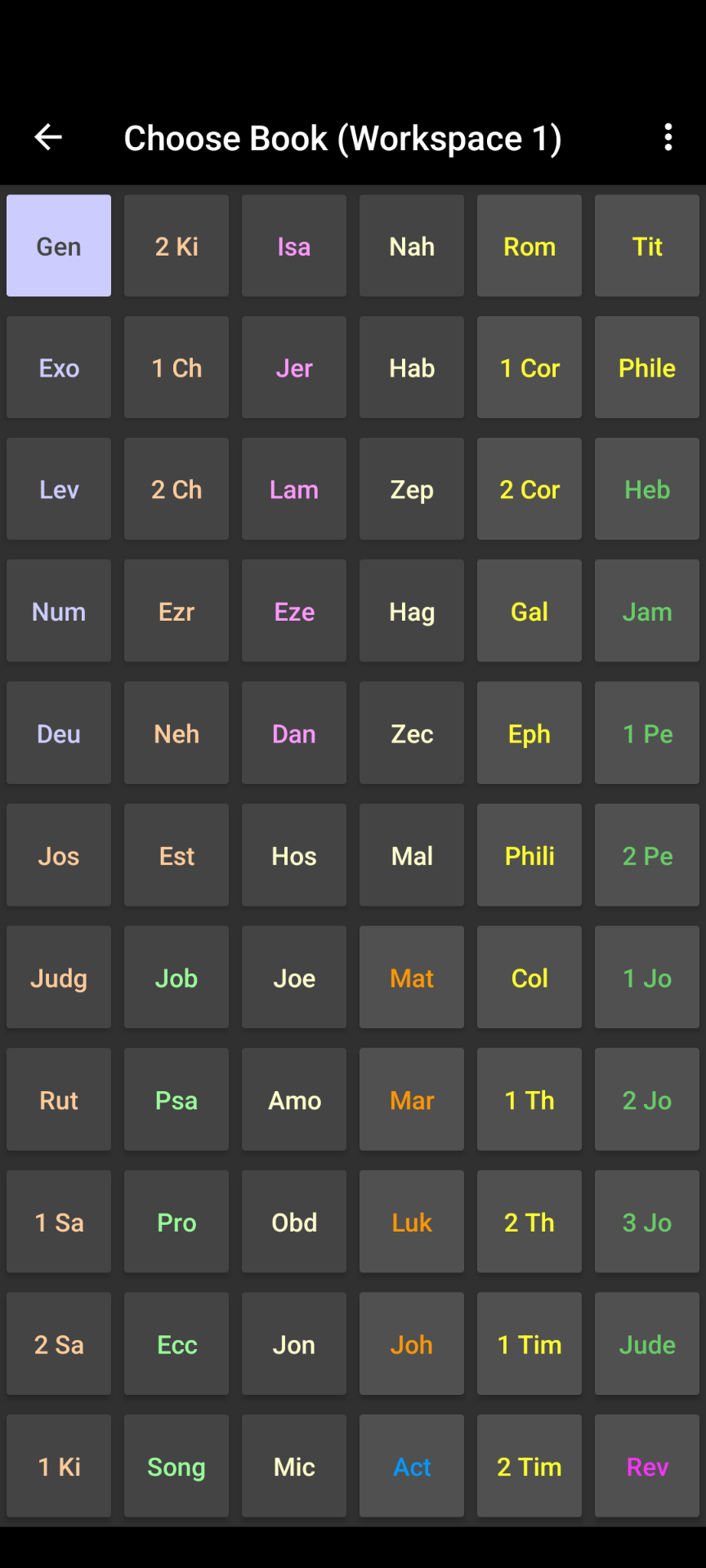
The Book Chooser will open where you can select any book that is available in the current document. For example, in regular Bible documents you will be able to see all 66 books of the Bible, but if you go to the Book Chooser when the active window is a smaller commentary, it will only show the books that are available in that commentary.
After you select the book, it will take you to the next screen where you can select the chapter:
After selecting a book and then a chapter it will take you back to the Bible screen and open the Bible to the selected reference.
Book Chooser Customizations
A few customization options are available in the top right vertical three-dot menu of the Book Chooser screen:
- Alphabetical Order: Enabling this option will display the books in alphabetical order. (Starting with numbers - i.e. 1 Chronicles)
- Order books horizontally: Enabling this option will list the books from left to right then from top to bottom.
- Group books by category: Enabling this option will automatically enable the Order books horizontally setting but will additionally group books by their category (i.e. Law, History, Poetry, Prophets, etc.)
- Show long book name: Enabling this option will additionally show the full book name under its abbreviation.
Opening Deuterocanonical Books
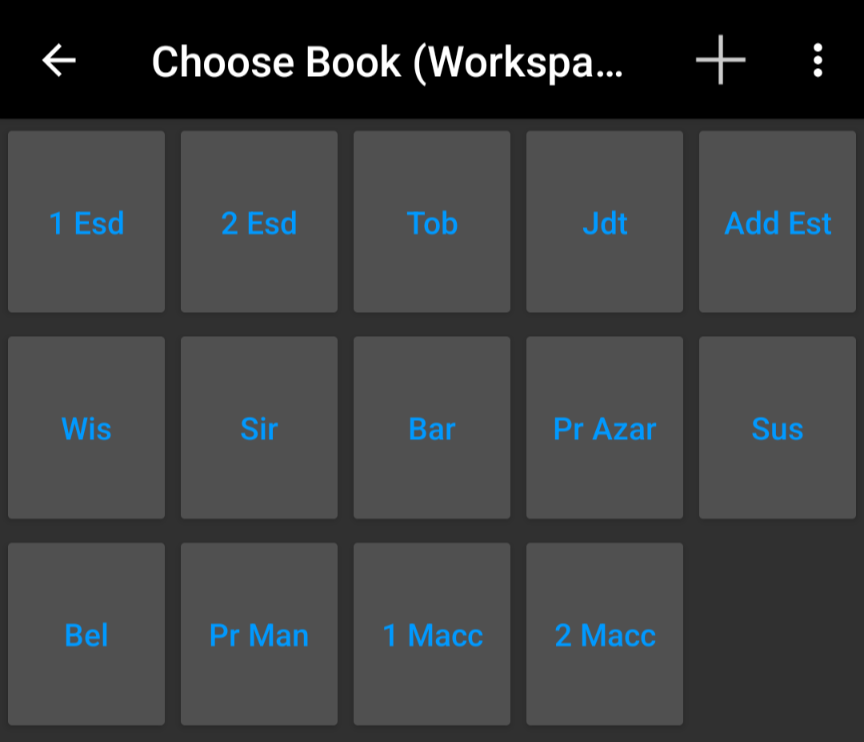
When your active window is a Bible version that contains deuterocanonical books, there will be a plus (+) icon in the Book Chooser. By clicking on the plus (+) icon, you will see a list of the included deuterocanonical books. For example, when opening the KJVA Bible, you can click the “Book Chooser” and you should see the plus (+) menu icon in the top right. Clicking the plus icon (+) will display the deuterocanonical books in the list:
Navigating Directly To Verse
If you would like to choose a specific verse number (in addition to the book and chapter), you can enable the Navigate to verse option in Application preferences:
- Click on the main menu (☰) on top left of the screen,
- Click Application preferences
- Find and enable the Navigate to verse setting.
Now after selecting the chapter number, you will be prompted to choose the exact verse number you would like to open.
Moving Between Documents
Opening Documents
To open a document, click on either the Bible or Books icons in the top navigation bar.
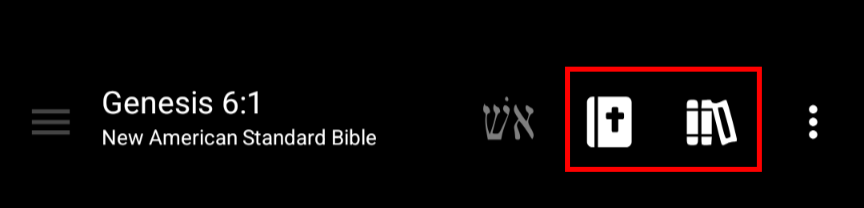
- Clicking on the Bible icon will show a list of installed Bibles that you can open.
- Clicking on the Books icon will show a list of other installed documents you can open ( i.e. Commentaries, Dictionaries, Generic books, etc).
Note: This will open the document in the currently active window. To open a document in a new window, see Windows.
The Bible and books toolbar buttons can also be customized. To customize the actions, to to the top left main menu (☰) and click Application Preferences. Click Action for toolbar button press to configure the custom button actions:
- Press to open menu, long press for documents screen (default)
- Press to open next document, long press to open document menu (list of documents)
- Press to open next document, long press to open documents screen
Closing Documents
To close a document, click the ☰ menu at the top right of the document you want to close and click Close. Alternatively, long-click on a bottom-right window bar button and click Close.
Maximizing/Minimizing Document Windows
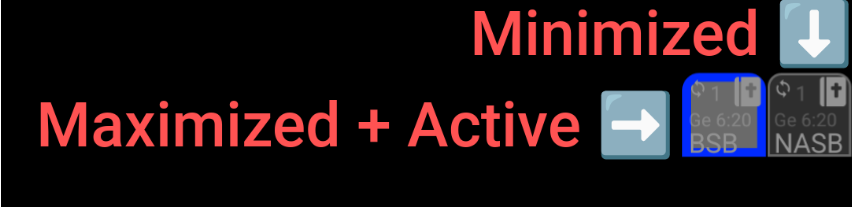
To maximize or minimize a window, click on the window icon in the bottom right window button bar. Clicking on a window that is visible will minimize the window and clicking on a window that is minimized will maximize it. Maximized window buttons will have a grey background while minimized window buttons will have a darker background. The window button that is highlighted indicates the active window (which should also be maximized):
For more on managing windows, see Windows.
Moving Between Workspaces
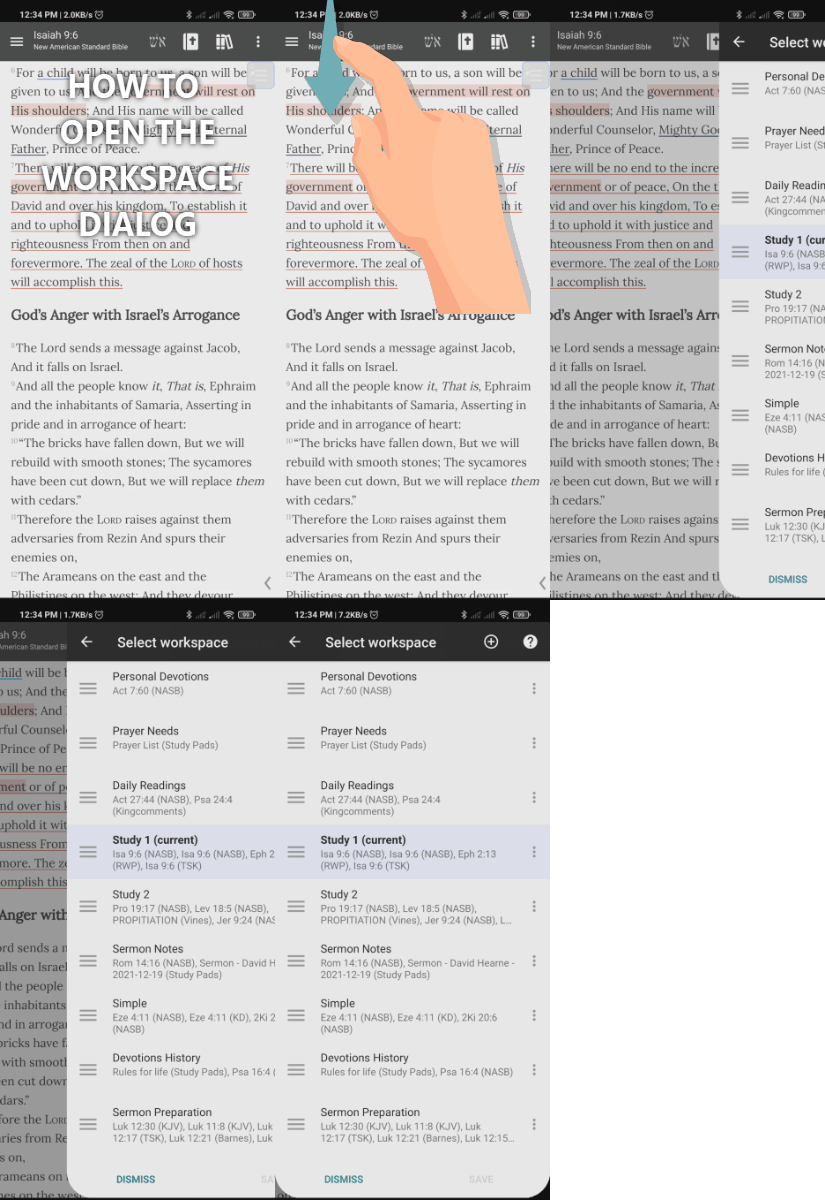
Open the workspaces dialog
To open the workspace dialog, simply swipe down from the book reference section of the top main toolbar. Alternatively, click the top right three-dot menu and click Workspaces.
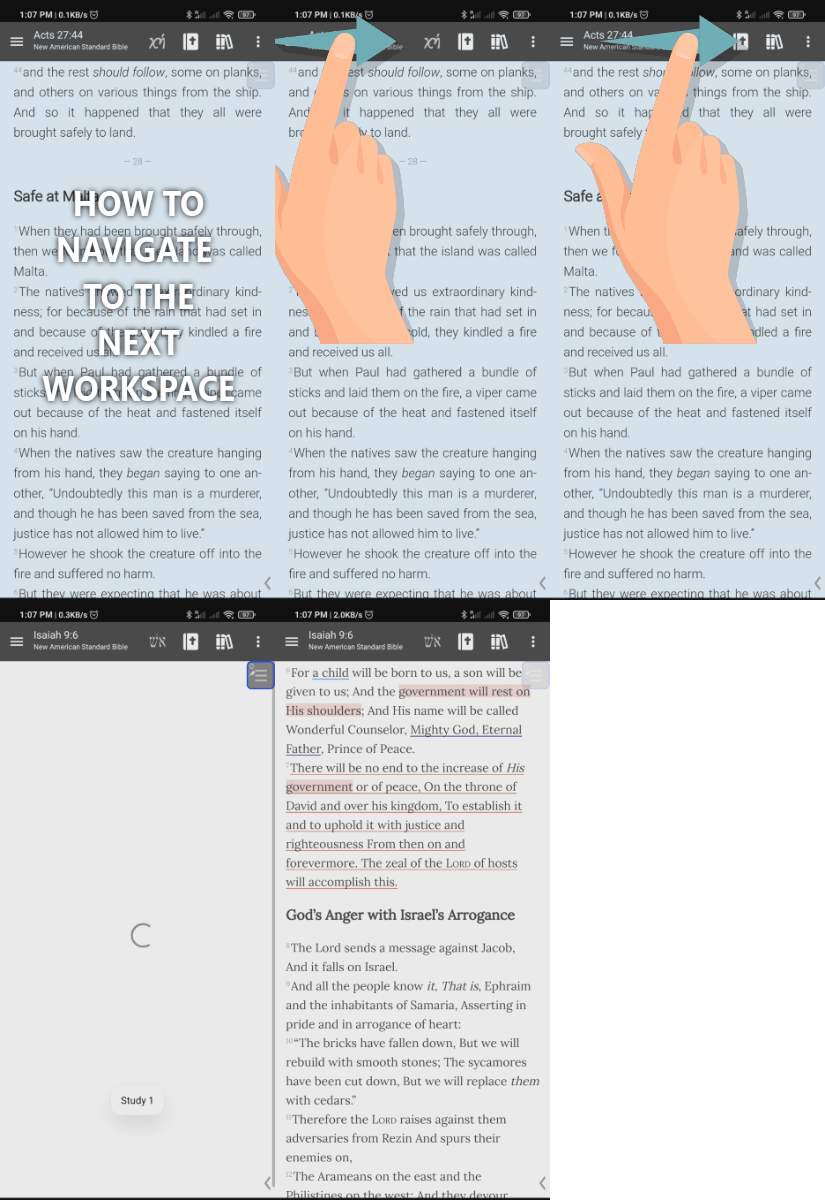
Go to the next workspace
To navigate directly to the next/previous workspace, you can swipe right or left on the book reference section of the top main toolbar:
For more information about managing workspaces, see Workspaces.
Gestures and Shortcuts
AndBible supports a variety of gestures and shortcuts for efficient navigation.
Swipe Left/Right on Bible Text
You can swipe left or right on the Bible text to navigate. The behavior can be
configured in Settings > Application behavior > Action for swipe
left/right gesture:
- Chapter (default) – Navigate to the next or previous chapter.
- Page – Scroll by one page (like tapping the margin).
- Disabled – Swiping has no effect on the Bible text.
Double-Tap to Fullscreen
Double-tap the Bible text to enter fullscreen mode, which hides the toolbar and status bar for distraction-free reading. Double-tap again to exit fullscreen.
This feature is enabled by default and can be toggled in Settings >
Application behavior > Double-tap to fullscreen.
Fullscreen by Scrolling
When enabled, the app automatically enters fullscreen mode when you start scrolling the text, and exits fullscreen when you scroll back to the top.
To enable: Settings > Application behavior > Fullscreen by
scrolling.
Volume Keys Scrolling
By default, the device volume buttons scroll the Bible text up and down instead of adjusting the system volume. This is useful for hands-free reading.
To disable: Settings > Application behavior > Volume keys scroll.
Long-Press Actions
Several buttons support long-press for quick access to additional features:
- Back button – Open the navigation history list.
- Speak toolbar button – Open speak settings directly.
- Window button (in the bottom bar) – Minimize the window instantly.
- Verse location title (top of screen) – Jump to the document selector.